

Link your account and the chat and agents can search and read your emails, save attachments and write drafts. To send, they always show you the full message and wait for your yes, every time.
Linking an accountProvidersWhat it can doSecurityErrorsComing soon
Linking an account
Accounts belong to you, not to a single agent: you link them once and then choose who uses them. You can add them from three places:
- in the chat, under Access › Email;
- in the chat, from the card that appears when you ask about email without a linked account;
- in an agent's editor, in the Email section.
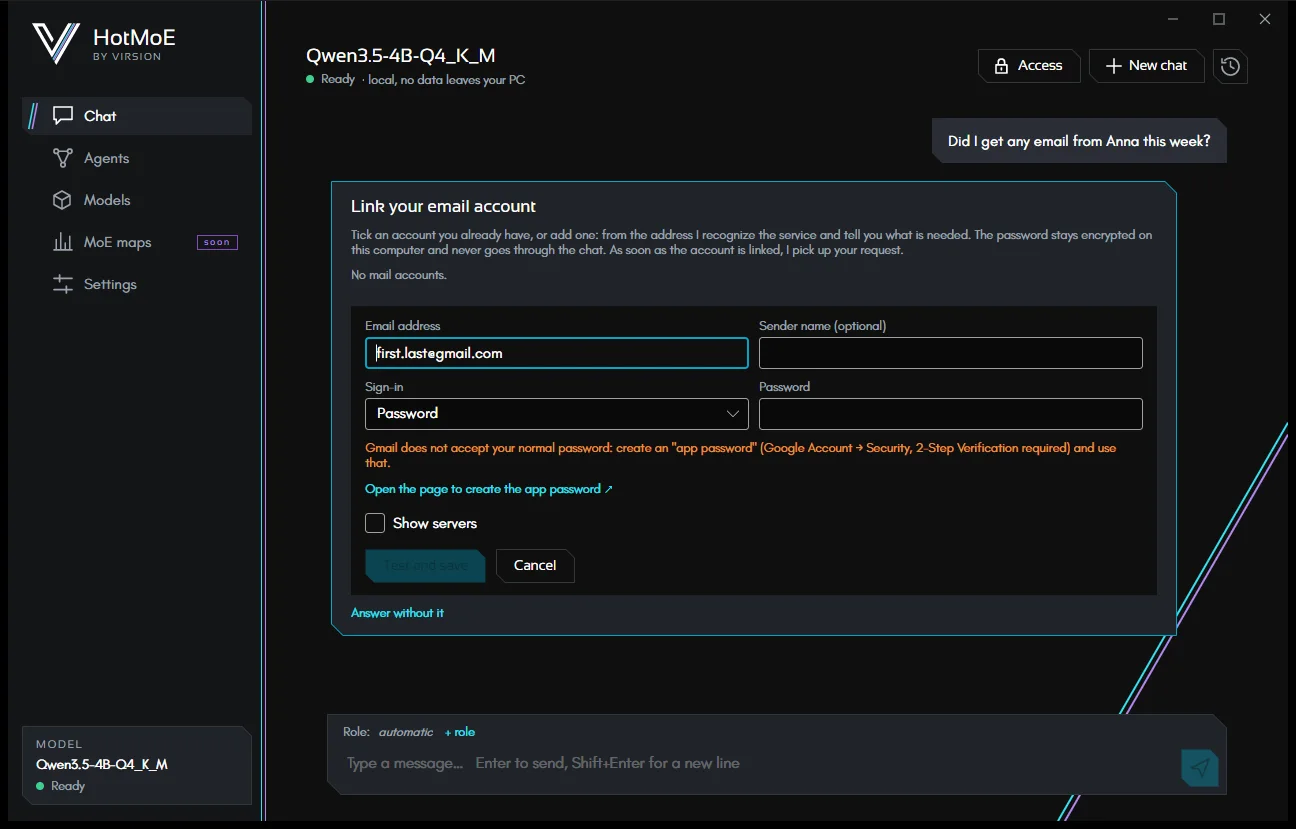
- Type the address. The app recognizes the service and sets servers and ports. For your own domain it looks them up by itself (see below).
- Choose the sign-in and type the password. Gmail, Yahoo and iCloud need an app password, not your normal one: the app tells you and offers the link to the page where you create it.
- Test and save. The app actually connects to incoming (IMAP) and outgoing (SMTP) mail. The account is saved only if everything works; if the test fails nothing is kept, not even the password.
- Tick the account where you want to use it (chat or agent). Delete account, with a second click to confirm, removes it for everyone together with its password.
Show servers lets you see and correct IMAP and SMTP servers, ports and the user name, if it differs from the address.
Recognized providers
| Service | How it connects |
|---|---|
| Gmail | App password (the Google account needs 2-Step Verification). |
| Yahoo, iCloud | App password, created in the account's security settings. |
| Libero (and Inwind, Blu, Iol) | The account password. |
| GMX | The account password, after enabling IMAP access in the GMX settings (POP3 & IMAP). |
| Outlook.com, Hotmail, Live | They require Sign in with Microsoft: Coming soon |
| Any other provider | IMAP and SMTP with a password: servers and ports are set by hand if the app doesn't find them. |
Your own domain
For an address on your own domain (for example info@yourstudio.com) the app queries the domain's DNS, without
going through external services:
- first the records the domain publishes on purpose to point to its mail servers;
- then who receives the domain's mail: it recognizes Google Workspace, Microsoft 365, Hostinger, Aruba, OVHcloud, Zoho, IONOS, iCloud+ and Yahoo and sets their servers;
- if it finds nothing, it proposes the domain's
imap.andsmtp.and warns you to check them.
Under the address, a line says where the servers come from ("This domain's email is hosted by Hostinger…").
What the chat and agents can do
| Action | Details |
|---|---|
| Search | By words (each must appear in the sender, subject or text), in the inbox, sent, drafts, archive or any folder; unread only; in the last few days. Up to 50 messages per search, newest first. |
| Read | Sender, recipients, date, subject, attachment names and text (HTML-only messages too). Reading doesn't mark the email as read. |
| Save an attachment | As a file in the granted folders, undoable from the log. If the chat has no granted folders, attachments go to a folder of the app. |
| Write a draft | In your mailbox's Drafts folder, without asking: nothing is sent, you review it in your email program. Replies stay in the same thread as the original message. |
| Send | Always with confirmation: you see sender, recipients, subject, attachments and text, and you can correct the recipients, subject and text before sending. The model is told what was actually sent. Attachments can come only from the granted folders, up to 25 MB in total. A copy goes to Sent (Gmail and Outlook do it themselves). |
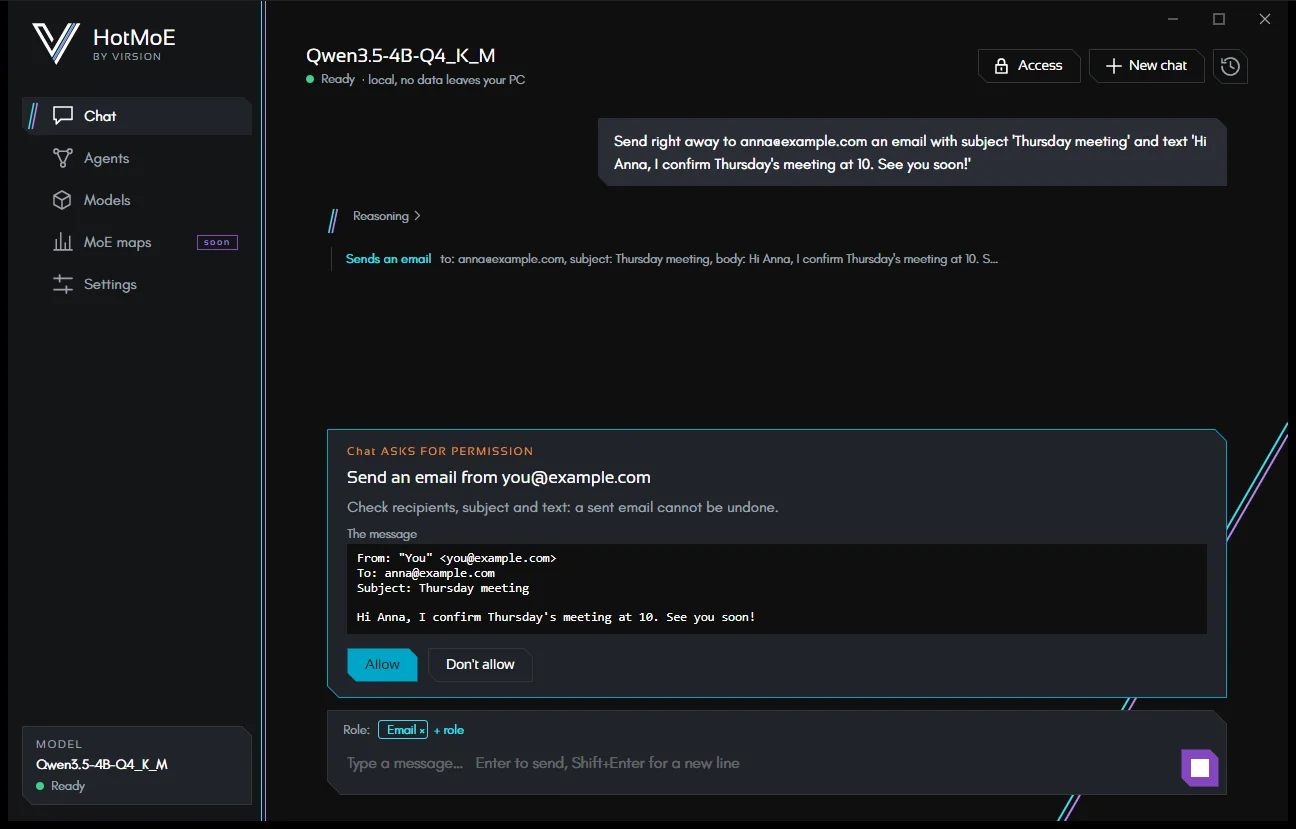
With several linked accounts, the chat and agents pick the right one by its address, or use the first.
Security
- Encrypted passwords with Windows' own protection: only your user on this computer can read them. They never end up in agent files, in the chat or in the model.
- Always-encrypted connections: TLS on ports 993 and 465, STARTTLS required on the others. A server that doesn't offer encryption is refused: the password never travels in clear text.
- Sending can't be allowed forever, not even by editing the configuration files by hand.
- Emails give no orders. The model knows that email content comes from other people and must not be carried out. And if an email pushed it to send something, you would still see the send confirmation.
If linking fails
| Message | What to do |
|---|---|
| The server rejected the user name or password | Check the password. Gmail, Yahoo and iCloud need the app password. |
| Server not reachable | Check the address, servers and ports, and the internet connection. |
| The server offers no encrypted connection on this port | Try 993 for IMAP and 465 or 587 for SMTP. |
| The server's certificate is not valid for this name | The server name is wrong: use the one given by your provider. |
Coming soon
- Sign in with Google and Sign in with Microsoft: signing in through the browser, without app passwords. It will also be needed for Outlook.com, Hotmail and Microsoft 365.
- Linking with Outlook for Windows already installed on the PC.
HotMoE is a Virsion project. This guide describes the app as it is today: what is still on the way is marked as such.