

Chat
A conversation with the model running on your computer. When you grant folders or email, the same chat becomes an agent: it understands by itself when it has to work on your files or your email.
WritingImagesReasoningContext and fidelityRepliesHistoryLong conversationsMemoryRolesAccessMissing accessConfirmations and log
Writing and sending
- Enter sends, Shift+Enter starts a new line.
- Stop halts the reply: the part already written stays, and the model remembers it afterwards. It also stops a tool at work right away, such as a search through files: while it works, the tool's step shows two animated lines.
- Under each reply: number of tokens, speed in tokens per second and duration, plus Copy to copy the text.
- At the top, next to the model name, the engine state and a reminder that everything stays local.
Images
With a model that sees images, you can show the chat a photo, a screenshot or a scanned page. These models are marked Sees images on the Models page.
- To attach: the image button in the message box, dragging images onto the chat, or Ctrl+V to paste one (a screenshot, for example).
- Attached images appear as thumbnails above the message box; × removes one. You can send them with or without text.
- Large images are reduced to at most 1600 pixels per side; formats the engine can't read, such as WebP, are converted.
- Images are saved with the conversation and shown in your message. They stay in the conversation, so you can ask follow-up questions about them.
With a model that doesn't see images the button isn't there, and if you drag or paste an image a message suggests choosing a model marked Sees images. If you reopen an old conversation with images using such a model, the model receives a placeholder instead of each image.
Like the rest of the chat, images stay on your computer.
Reasoning
Many models reason before answering. While they do, the chat shows Thinking…; then the reasoning stays available in the Reasoning section, collapsed to keep things tidy. Whether to turn it on and how long to let it run is decided in Settings: on gives more accurate answers to problems, calculations and code; off gives immediate answers.
Context and fidelity from the chat
The button at the top right of the chat, next to Access, shows what the engine is using, for example Context 32K · Balanced. Click it to change:
- Context length: how much text the model keeps in mind. With an expert map, context takes VRAM that would otherwise go to the experts: on Qwen3-235B with an RTX 5080, going from 32K to 16K raises generation from about 4.3 to 5.1 tokens/s.
- Automatic context priority (only with Automatic): Speed, Balance or Long context, explained in Settings.
- Selective fidelity (only when the model has a map): Balanced is recommended; Fast is about 15% faster but loses some quality, more on topics far from the map. Details in Selective fidelity.
They are the same settings as in Settings and apply after reloading the engine: the panel shows the Reload the engine button and how long the last load of this model took. If the conversation is longer than the new context, the panel warns you: after reloading, its oldest part will be summarized (see Long conversations).
What replies can show
- Headings, bold and italics, bulleted and numbered lists, quotes and tables.
- Code blocks with a Copy button.
- Simple math formulas, shown as readable text.
- Text you can select by dragging, across paragraphs, lists, code and even several messages (list bullets are copied too): it goes straight to the clipboard and Copied to clipboard appears (you can turn this off in Settings). A double click selects a word; Ctrl+C and the right mouse button copy too.
Stopped replies
| Message | What happened |
|---|---|
| Stopped: the model was repeating… | The app notices when the model repeats the same text in a loop and stops it. Rephrase the question. |
| Stopped: the reply length limit… | The reply reached the maximum length per reply. |
| The engine did not respond | The engine stopped. If it happens again, reload the model from the Models page. |
| The request does not fit in the model's context… | Even after compacting the conversation, the request is too big (for example one huge message). Start a new chat or increase the context in Settings. |
History
- The clock button opens the panel on the right with the conversations, newest first, and a box to search them by title.
- Reopening a conversation lets you continue it: the model finds the earlier questions and answers.
- The bin next to each conversation deletes it.
- Conversations are saved only on this computer.
Long conversations
A model can keep only so much text in mind: its context. When a conversation gets close to the limit (about 70%), the app makes room in two steps:
- First it removes the results of older tool uses (files read, searches), keeping the latest three. The model can read them again if needed. It's instant and loses nothing of what you and the model wrote.
- Only if that isn't enough it has the model itself summarize the oldest part, and keeps your current request and the latest exchanges as they are. Then a note appears in the conversation: Conversation compacted: the oldest messages were summarized to stay within the model's context.
- The history keeps all the messages: only what the model receives is summarized.
- Details from the summarized part can be less precise than in the original messages. If one matters, repeat it.
- If a request still doesn't fit, for example one huge message, the reply tells you to start a new chat or increase the context in Settings.
- Long files are read in parts, so a long PDF doesn't fill the whole context.
Compacting on request
Type /compact in the message box to summarize the conversation right away, for example before starting a new
long task. You can add what to keep: /compact keep the figures of the Rossi quote. The command isn't sent to
the model as a message.
- While you type /, a hint appears under the box: /compact [what to keep]: summarizes the conversation now to free up context.
- If there is nothing new to summarize, a note says: Nothing to compact: the conversation is already summarized or empty.
Agents work the same way, /compact included.
Memory across conversations
If you turn it on in Settings › Memory, the chat remembers short notes about you and can search your past conversations when you mention them. It is off by default.
The chat that works: roles
When you have granted folders or linked email (see Access), for every message the chat works out whether it needs a role: a set of rules and tools for a certain kind of work. For an ordinary question it activates none and answers as usual.
| Role | What for | What it needs |
|---|---|---|
| Files | Finding, opening, reading, summarizing and comparing your documents; answering about them; writing new files. | A granted folder |
| Tidy up | Putting a folder in order: it proposes a structure, waits for your yes, then creates folders and moves files. It deletes nothing. | A granted folder |
| Code | Working on a software project: reading and changing code and, if you allow it, running builds and tests. | A granted folder (and commands, if you want) |
| Checking what arrived, searching, reading, replying, writing drafts, sending, saving attachments. | A linked email account |
- Automatic choice. In the message box, Role: automatic means the chat chooses by itself. A request can activate two roles together, for example reading a file and sending it by email.
- The role stays while the task goes on. If tidying up proposes a plan and you answer "ok, go ahead", the role is still there; it drops when you change subject.
- You can choose it yourself. Remove a role with × or add one with + role: the next message uses your choice.
- Under each reply you see the roles used, and the tool steps (for example Reads, Searches the mail) can be opened to see their result.
A role only uses what you granted in Access. Without a granted folder the Files role does not exist; commands work with every file role (Files, Tidy up, Code) once the commands switch is on.
Access
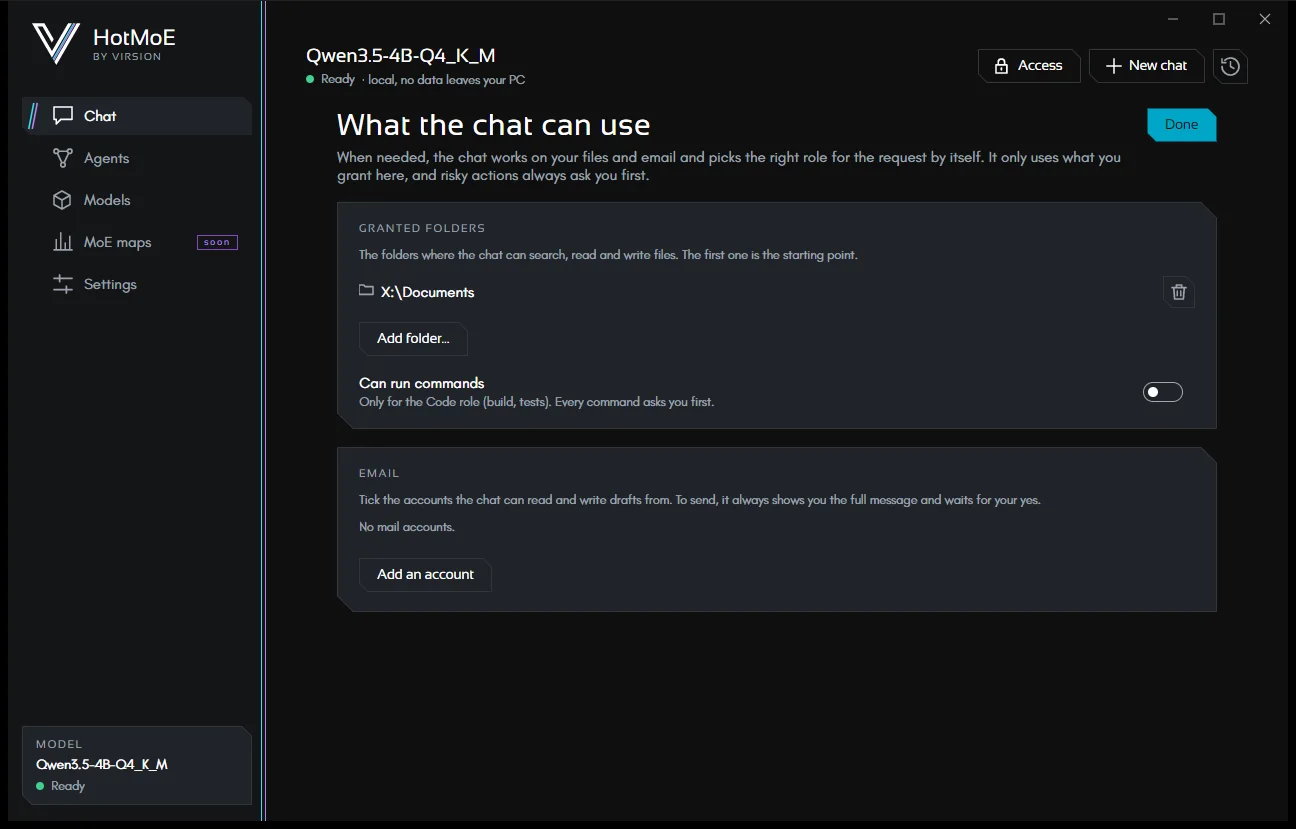
The Access button at the top opens the only place where you grant something to the chat. Changes apply from the next message.
- Granted folders: the chat can search, read and write only inside them (subfolders included). The first one is the starting point.
- Can run commands: for every file role. Builds and tests, but also unlocking a file kept read-only by version control (for example
p4 editwith Perforce). On Windows commands run in PowerShell (or cmd, if the model asks for it). Each command is shown to you and asks for confirmation, unless you allowed it forever. - Email: tick the accounts the chat may use, or add a new one. See Email.
- Permissions: the actions you allowed forever, each with Revoke.
When access is missing
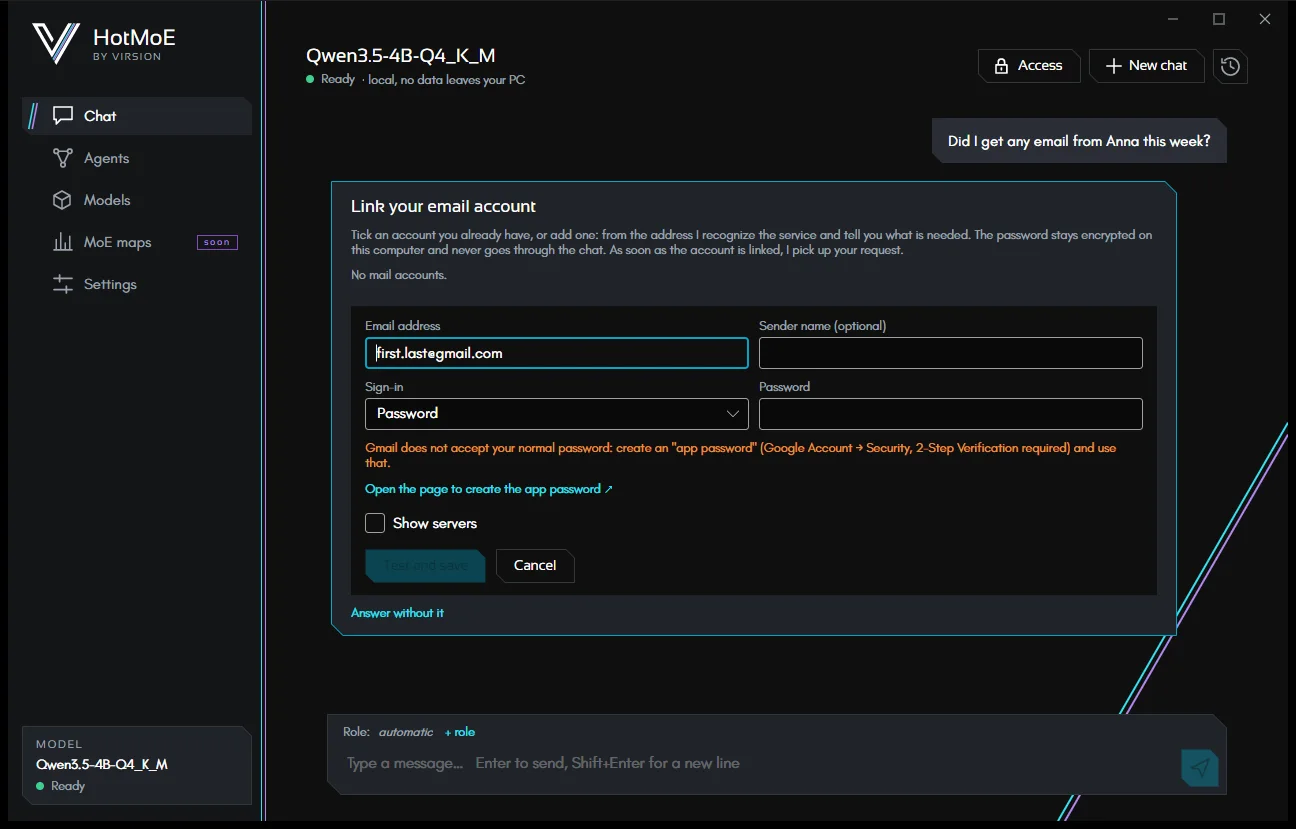
If you ask for something that needs files or email you haven't granted yet, the chat doesn't answer "I can't": it shows a card to set them up right there, in the conversation.
- Email: tick an account you already have, or type your address. The app recognizes the service, sets the servers and tells you what is needed (for Gmail, the app password, with a link to the right page).
- Files: Add folder… and choose the folder to work on.
- As soon as the access is there, your request starts again by itself. With Answer without it the model answers with what it has.
The password is typed only in its protected field: it never goes through the chat or the model.
Confirmations and log
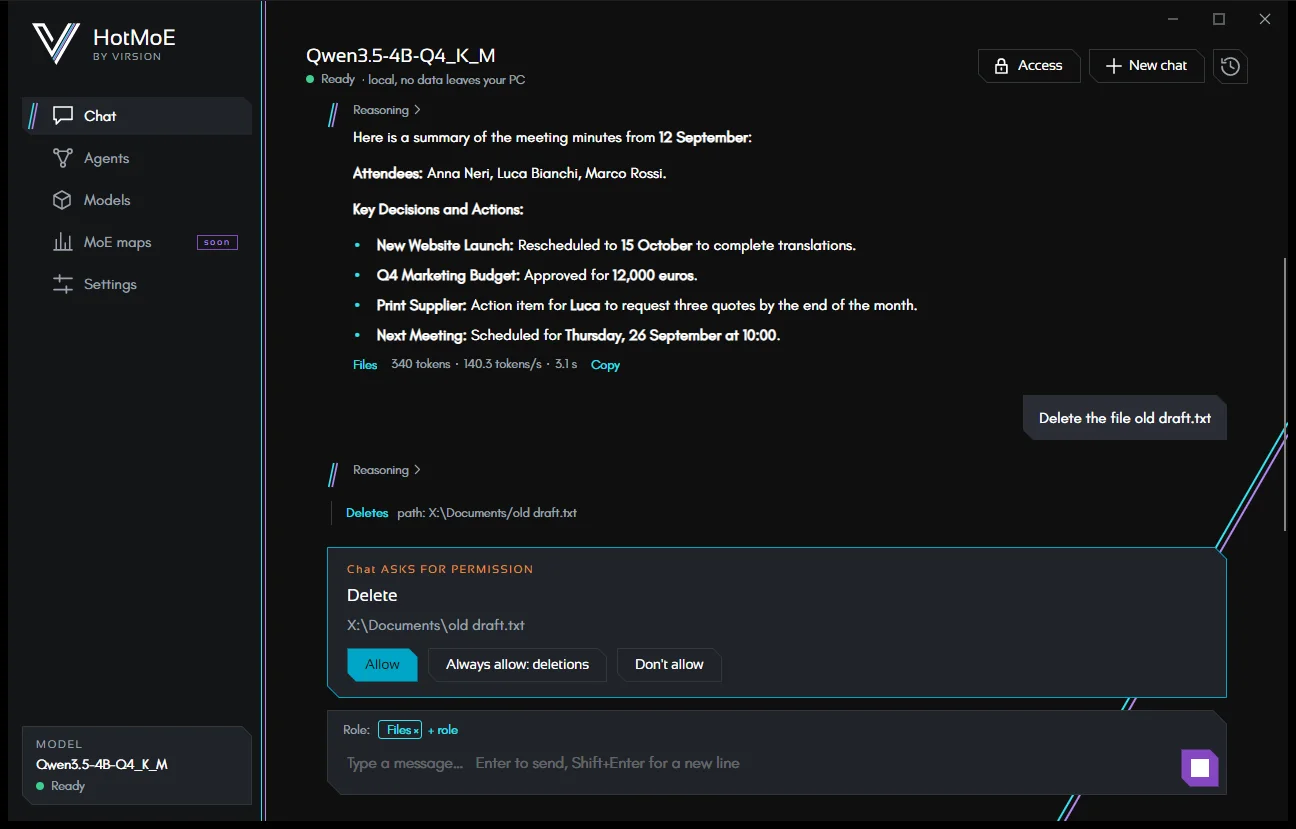
Risky actions stop on a confirmation card with three choices: Allow, Always allow (for that kind of action) and Don't allow. If you refuse, the model doesn't insist and asks what you would rather do. Which actions ask for confirmation is explained on the agents page: the chat follows the same rules.
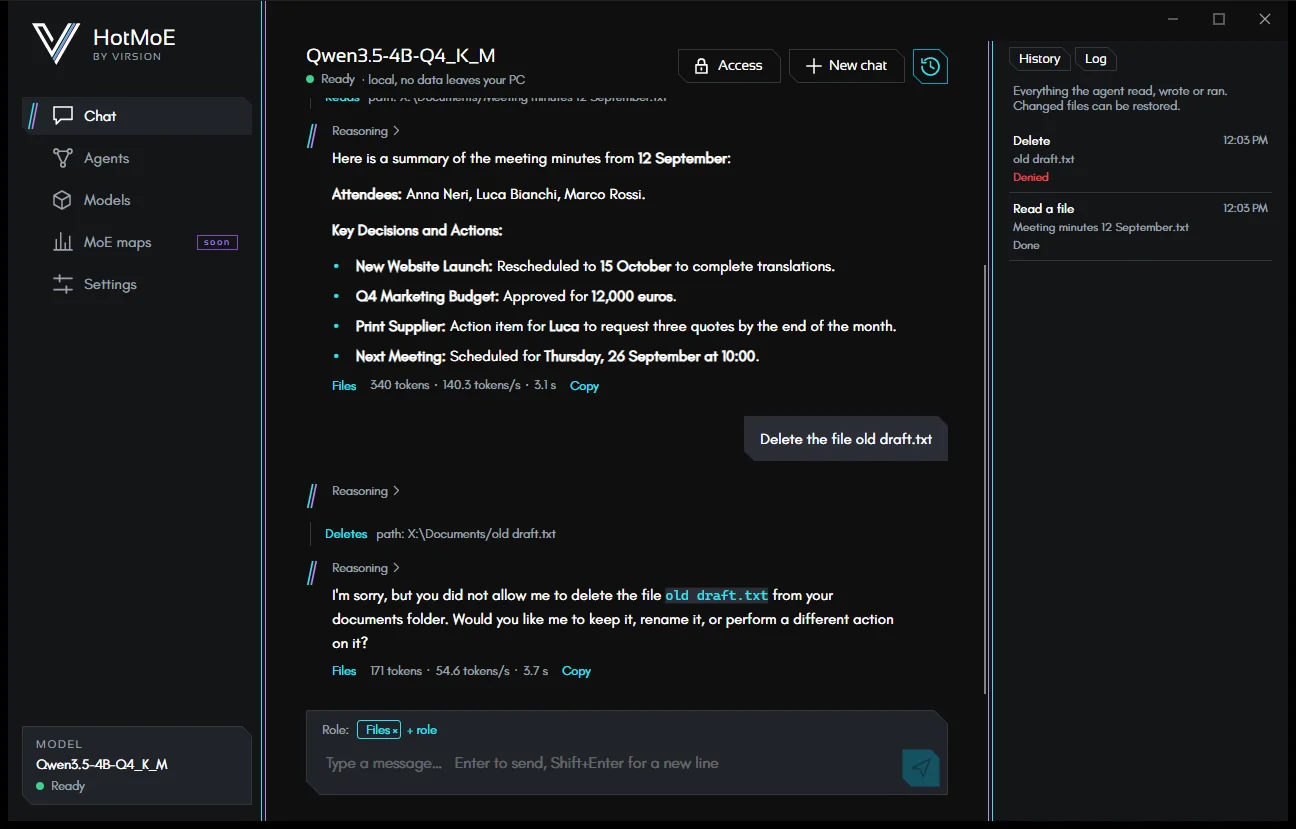
In the panel on the right, the Log tab lists everything the chat read, wrote or ran, including the actions you denied. Files that were created, changed, moved or deleted can be restored with Undo.
Smaller models use tools less reliably: sometimes they don't open the right file or stop before finishing. For work on files and email, a model marked Good for agents is the better choice.
HotMoE is a Virsion project. This guide describes the app as it is today: what is still on the way is marked as such.