

Agents
An agent is a saved assistant with its own instructions, folders and permissions. The chat picks the right role by itself; an agent always does the same job, the way you decided, and remembers its conversations.
GalleryCreating and editingWorking with an agentToolsConfirmationsLogGranted foldersMCP servers
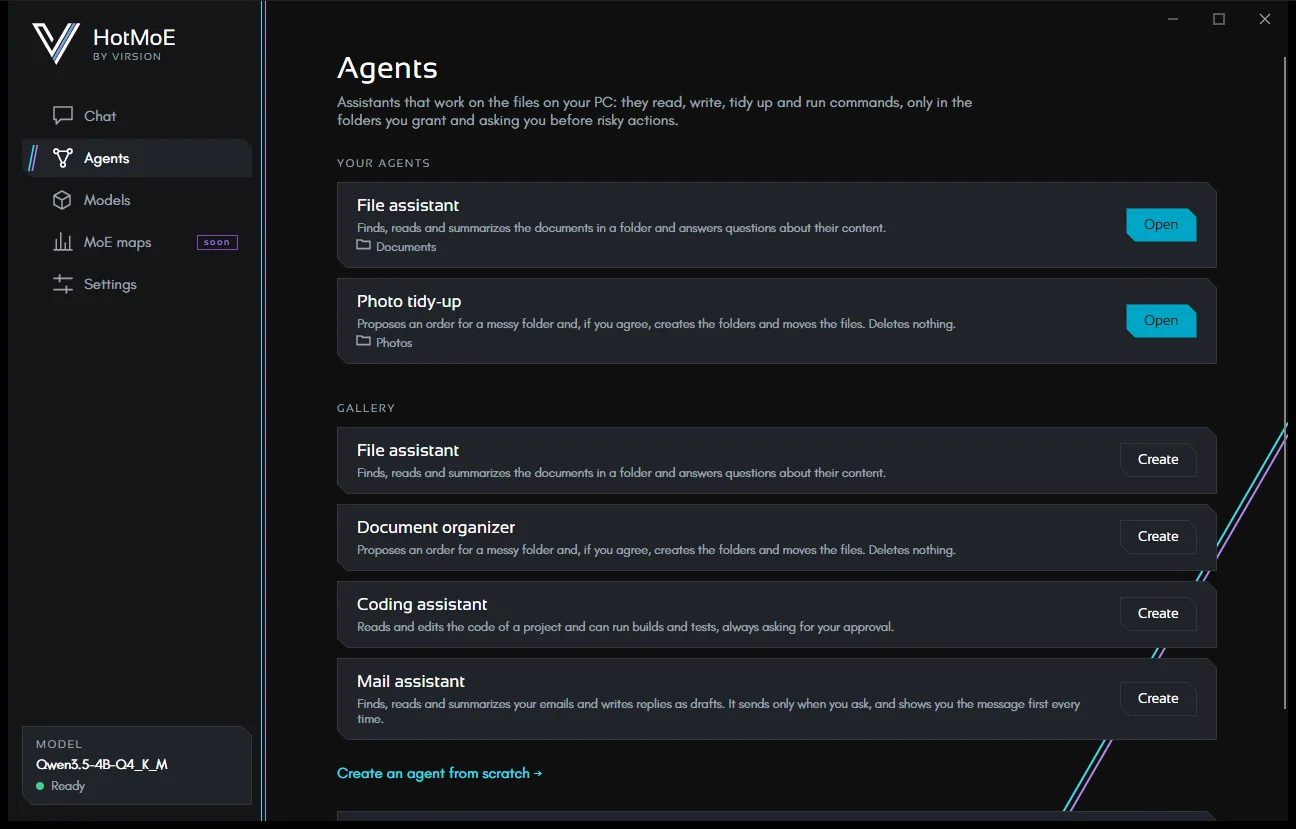
Gallery
Four ready-made agents. Create asks for the folder they will work on and the agent is ready right away.
| Agent | What it does |
|---|---|
| File assistant | Finds, reads and summarizes the documents in a folder and answers questions about their content. |
| Document organizer | Proposes an order for a messy folder and, if you agree, creates the folders and moves the files. It deletes nothing. |
| Coding assistant | Reads and changes a project's code and can run builds and tests, always asking you first. |
| Mail assistant | Finds, reads and summarizes your emails and writes replies as drafts. It sends only when you ask, and shows you the message first every time. On creation, the editor opens so you can link the account. |
Create an agent from scratch → opens an empty editor.
Creating and editing an agent
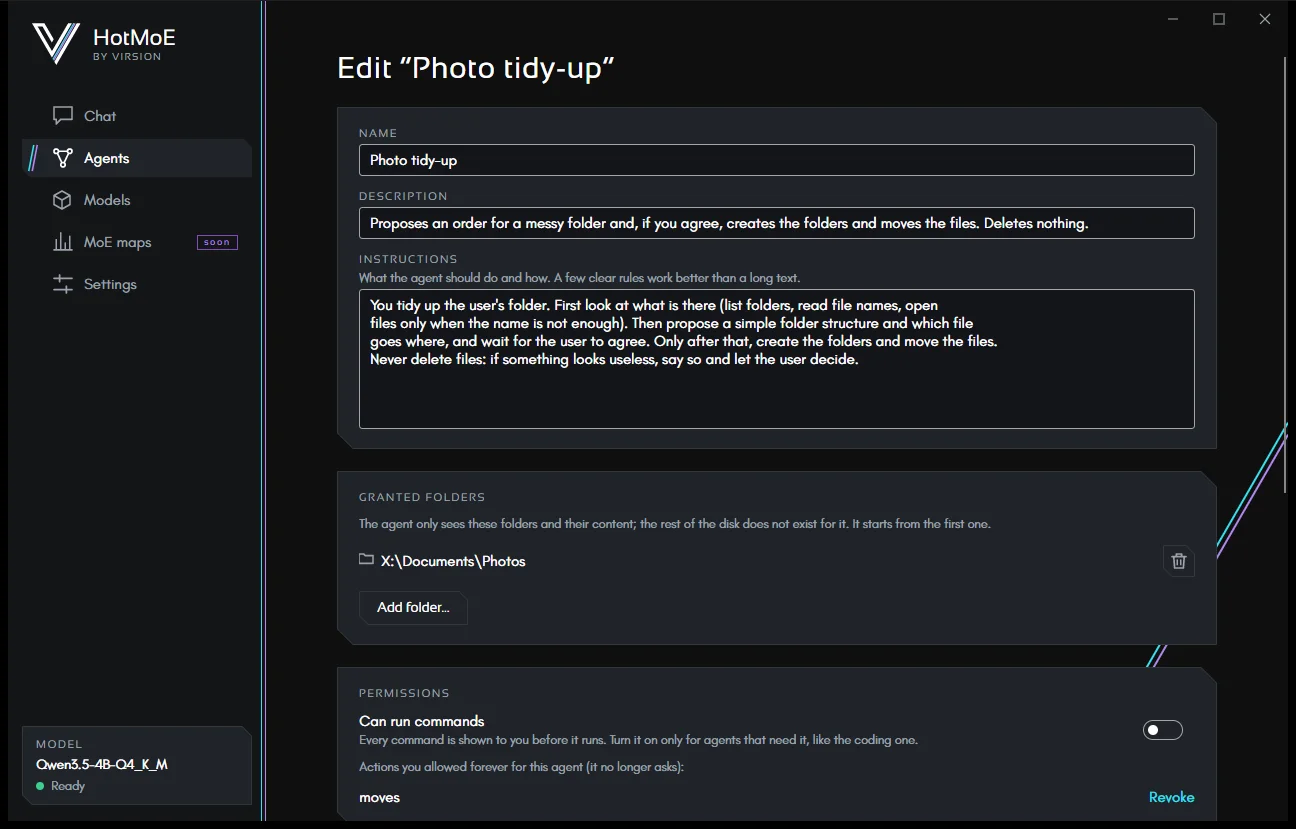
| Field | What it is for |
|---|---|
| Name, Description | How you recognize it in the list. |
| Instructions | What it must do and how. A few clear rules work better than a long text, especially with small models. |
| Granted folders | The only folders the agent sees. The first is where it starts. At least one is required. |
| Can run commands | Turn it on only for agents that need it, like the coding assistant. Every command is shown to you first. |
| Permissions | The actions you allowed forever for this agent, each with Revoke. |
| MCP servers | External tools to connect: see MCP servers. |
| The email accounts the agent may use: see Email. |
- Save applies the changes; Cancel discards them.
- Delete agent asks for a second click and also deletes its conversations (the action log stays).
- Each agent is a readable JSON file: Open the agents folder shows them, so you can back them up or share them.
Working with an agent
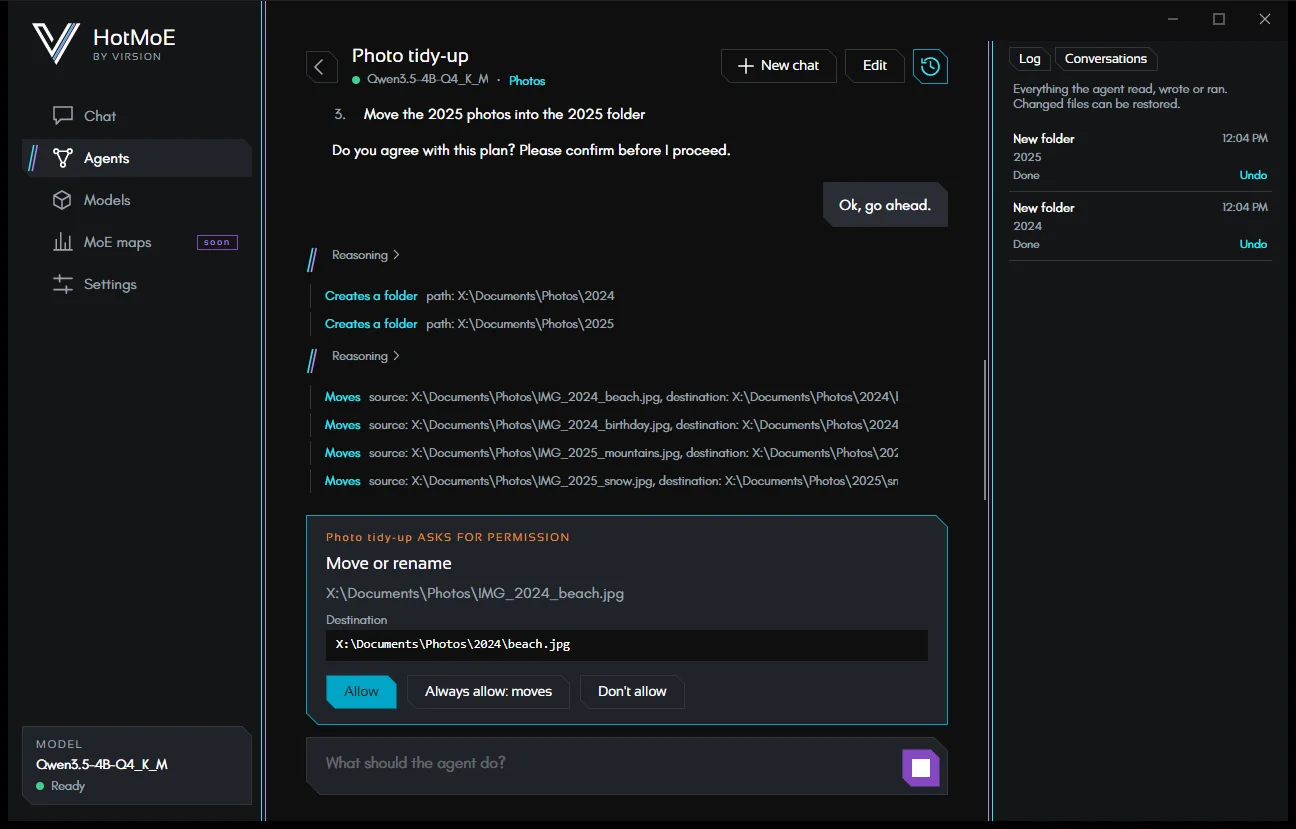
- Describe the task in your own words. The agent shows the steps it takes (Looks at the folder, Reads, Moves…); a click on a step shows its result.
- For risky actions it stops on the confirmation card: Allow, Always allow for that kind of action, or Don't allow.
- At the top, the name of the folder it works on: a click opens it in File Explorer.
- New chat starts over; the Conversations tab on the right reopens past ones, and the agent finds the earlier questions and answers.
- Open conversations stay alive when you switch pages: when you come back you find them where you left them.
- Long conversations are compacted as in the chat; type
/compactin the message box to summarize right away. See Long conversations.
What an agent can do
| Tool | What it does |
|---|---|
| Looks at the folder | Lists files and folders (up to 500 entries at a time). |
| Reads | Opens text files, PDFs (page by page) and Word documents (.docx). Long files are read in parts, about a quarter of the model's context at a time, continuing from where the reading stopped: a long PDF no longer fills the whole context. A PDF made only of images is reported as having no text. |
| Searches files | Finds files and folders by name (for example *.pdf or invoice*), subfolders included, and optionally only those containing a text, PDF and Word included. |
| Writes | Creates a new text file or replaces its whole content. |
| Edits | Changes just one piece of a text file, leaving the rest as it was (line endings and encoding included). |
| Creates a folder | Including any missing folders in between. |
| Moves | Moves or renames a file or a folder. |
| Deletes | Deletes a file or an empty folder. The file doesn't vanish: it is set aside and can be restored. |
| Runs a command | Only if the agent can run commands. The system command line, at most 2 minutes, not interactive: commands that wait for input stop by themselves. |
| Email tools | If the agent has linked accounts: search, read, save attachments, write drafts, send. See Email. |
| MCP tools | Those offered by the connected MCP servers. |
What asks for confirmation
| Action | Confirmation | Can be undone |
|---|---|---|
| Looking, reading, searching | No | — |
| Creating a file or a folder | No | Yes |
| Replacing or editing a file | Yes | Yes (the previous version is restored) |
| Moving or renaming | Yes | Yes |
| Deleting | Yes | Yes |
| Running a command | Yes, showing the command | No |
| Using an MCP tool | Yes, showing the data it will receive | No |
| Saving an email draft | No | No (you delete it from your email program) |
| Sending an email | Always, with the full message to review and correct | No |
Always allow applies to one kind of action and to that agent (for MCP tools, to the single tool); you revoke it from the editor. Sending email doesn't allow it: it asks every time.
Log and undo
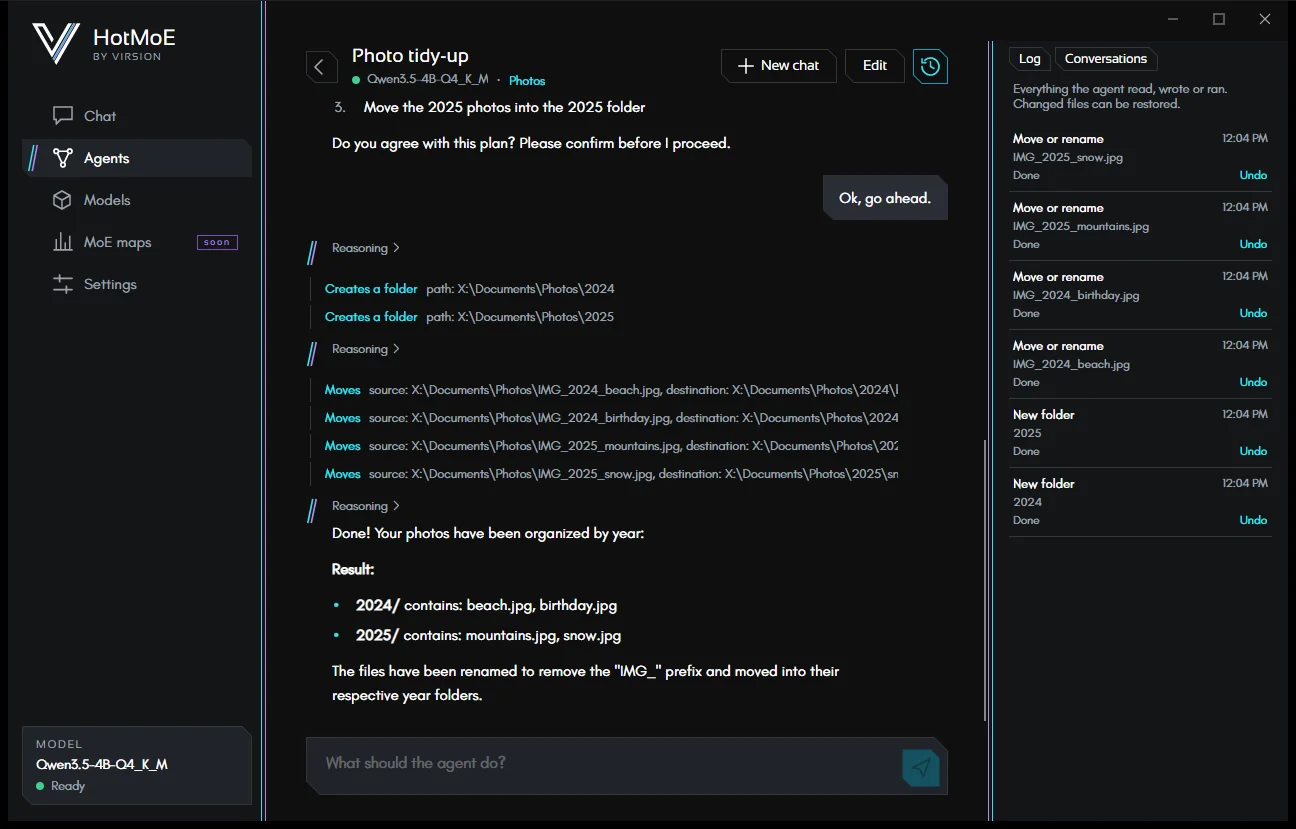
The panel on the right lists everything the agent read, wrote or ran, including denied or failed attempts. Undo puts things back as they were: it deletes a created file, restores the previous content, brings a moved or deleted file back to its place.
If the file was changed again after the action (by you or by another program), undo stops and tells you: better not to undo than to erase later work.
Granted folders
Every path the model asks for goes through a check: it must stay inside a granted folder. For the agent, the rest of the
disk doesn't exist. The check also holds against tricks: paths with .., links and junctions leading outside,
hidden data streams and special Windows paths are refused, and the attempt ends up in the log. A granted folder itself
cannot be moved or deleted by the agent.
MCP servers
MCP (Model Context Protocol) is an open standard for giving models external tools: memory, calendars, databases, web services. In the editor, under MCP servers, give the server a name and write:
- a command to start, for example
npx -y @modelcontextprotocol/server-memory, or - the address of a remote server (
https://…).
At the start of the conversation the agent connects to its servers and lists their tools; if a server doesn't answer, it says so and carries on without it.
MCP servers are external programs that run with your permissions, outside the granted folders. Only add servers you trust. Each of their tools still asks for confirmation, showing you the data it is about to receive.
Smaller models use tools less reliably. For agents, a model marked Good for agents on the Models page is the better choice.
HotMoE is a Virsion project. This guide describes the app as it is today: what is still on the way is marked as such.