

Settings
A few choices, designed to work with any model.
GeneralReasoningModelExpert mapGPU accelerationMemoryPaths
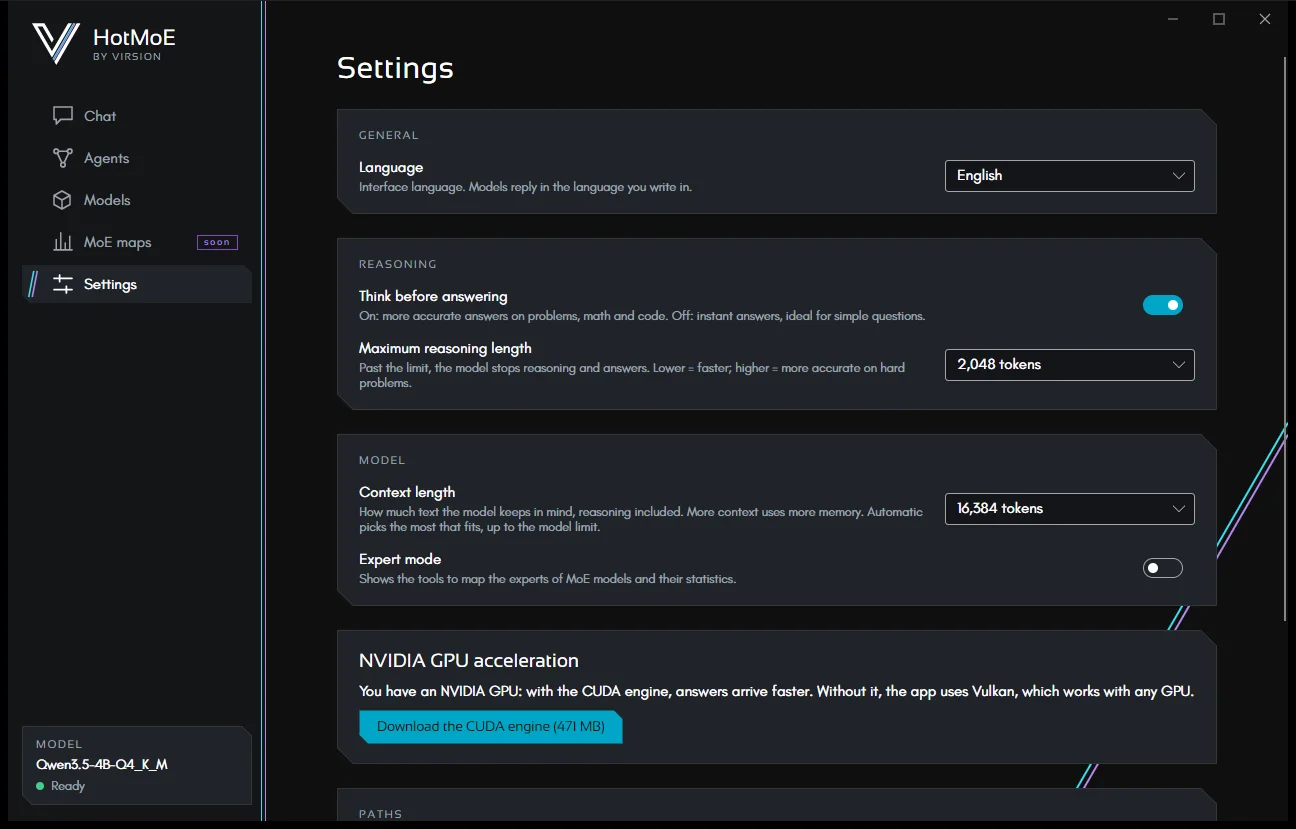
Reasoning and context settings apply after reloading the model: when you change them, a notice appears with the Reload the model button (a few seconds for small models). The language changes right away.
General
Interface language: English, Italian, French, German or Spanish, or Automatic, which follows the system language. The change is immediate, without restarting; numbers, dates and units follow the chosen language. Models still reply in the language you write in.
Copy selected text: text you select in replies goes straight to the clipboard, with a short notice. Turn it off to copy only with Ctrl+C or the right mouse button. It applies immediately.
Reasoning
- Think before answering: on gives more accurate answers to problems, calculations and code; off gives immediate answers, ideal for simple questions.
- Maximum reasoning length: past this limit the model stops reasoning and answers. Lower is faster, higher is more accurate on hard problems.
| Length | Reasoning tokens |
|---|---|
| Short | 1,024 |
| — | 2,048 · 4,096 |
| Standard (default) | 8,192 |
| — | 16,384 · 32,768 |
| Long | 65,536 |
| No limit | Reasoning can go on until it fills the context: with small models even many minutes. The app warns you. |
On top of the reasoning, each reply has up to 16,384 tokens of text.
Model
- Context length: how much text the model keeps in mind, reasoning included. Automatic (the default) picks the longest context that keeps the whole model on the graphics card, but at least 16K (more if the reasoning limit needs it); otherwise from 4,096 to 262,144 tokens. More context uses more memory: a fixed context that is too long moves parts of the model to the CPU and slows it down a lot (Qwen3.8-27B on an RTX 5080: 17 tokens/s with 16K, 10 with 64K). While the model runs, the context button in the chat shows the chosen length. With an expert map, the automatic context priority decides how to split the graphics card memory: Speed (default) gives almost all of it to the most used experts; Balance stops once more experts barely speed things up and gives the rest to context (on large cards the context grows a lot); Long context keeps at least 32K. A bigger context also means long conversations are compacted less often.
- If the context is smaller than the reasoning limit, the app warns you: the model would use it up before answering.
- Expert mode: shows the tools to create expert maps for MoE models on your own texts (see Creating a map).
Expert map
- Use the expert map (on by default): when the model has a map, its most used experts stay in RAM. See Using a map.
- RAM to leave free: the app never locks more than your total RAM minus this amount (from 512 MB to 32 GB, 12 GB by default). Only the locked part counts: the rest of the model is cache that Windows gives back to other programs. Below 4 GB the app warns you that the PC may become slow.
- Selective fidelity: Off, Balanced (recommended) or Fast. Details in Selective fidelity.
- VRAM for experts (shown in expert mode): keeps the map's most used experts on the graphics card, where the GPU computes them instead of the CPU. Automatic (default) uses the VRAM left after the chosen context; you can also fix it from 2 to 12 GB or turn it off. More VRAM for experts means faster answers but less context: on Qwen3-235B with an RTX 5080 generation goes from 4.1 to 5.5 tokens/s with 6 GB and to 6.1 with 8 GB. A fixed value that does not fit with the chosen context is reduced. It needs a map with the expert ranking (rebuilt with
build_plan.pysince 29/09/2026). - Below, the app tells you whether there is a map for the current model, how much RAM it locks, whether it is in use, or why it is not (too large for your RAM, locking failed).
Like the context, these settings apply after reloading the model. You can also change context and fidelity from the chat, with the button next to Access (see Chat).
GPU acceleration
With an NVIDIA card, here you can download the CUDA engine if you didn't on first launch. Details in Getting started.
Memory
Remember across conversations is off by default. When you turn it on, the chat can:
- save short notes about you (preferences, people, recurring facts) when you tell it something worth keeping or ask it to remember: "remember that my accountant is Paolo Verdi". Each saved note shows up as a Remembers step in the conversation;
- search your past conversations when you refer to something discussed before ("how much was the kitchen quote we talked about?").
Saved notes go into every new conversation. In this section you see them all with their date, add one by hand, forget one (Forget) or all of them (Forget everything). If you turn memory off, the chat no longer uses them, but they stay here until you delete them. At the top of the chat, · memory on reminds you it is active.
The chat saves only what you tell it about yourself, never content from emails or files. Everything stays on this computer.
Paths
- App data: settings, history, agents and everything else. Open the data folder shows it in File Explorer. What it contains is explained in Privacy and security.
- Models: where downloaded models are.
- Engine: the engine in use, with its type (Vulkan or CUDA) and version.
HotMoE is a Virsion project. This guide describes the app as it is today: what is still on the way is marked as such.