

Getting started
On first launch HotMoE looks at your computer, recommends a model and downloads it. From then on you start chatting right away.
First launchDownloadGPU accelerationLoading the modelFirst conversation
HotMoE is in preview: the Windows installer will come with the first public release, together with automatic updates. The graphics card engine (Vulkan) is already included in the app.
First launch
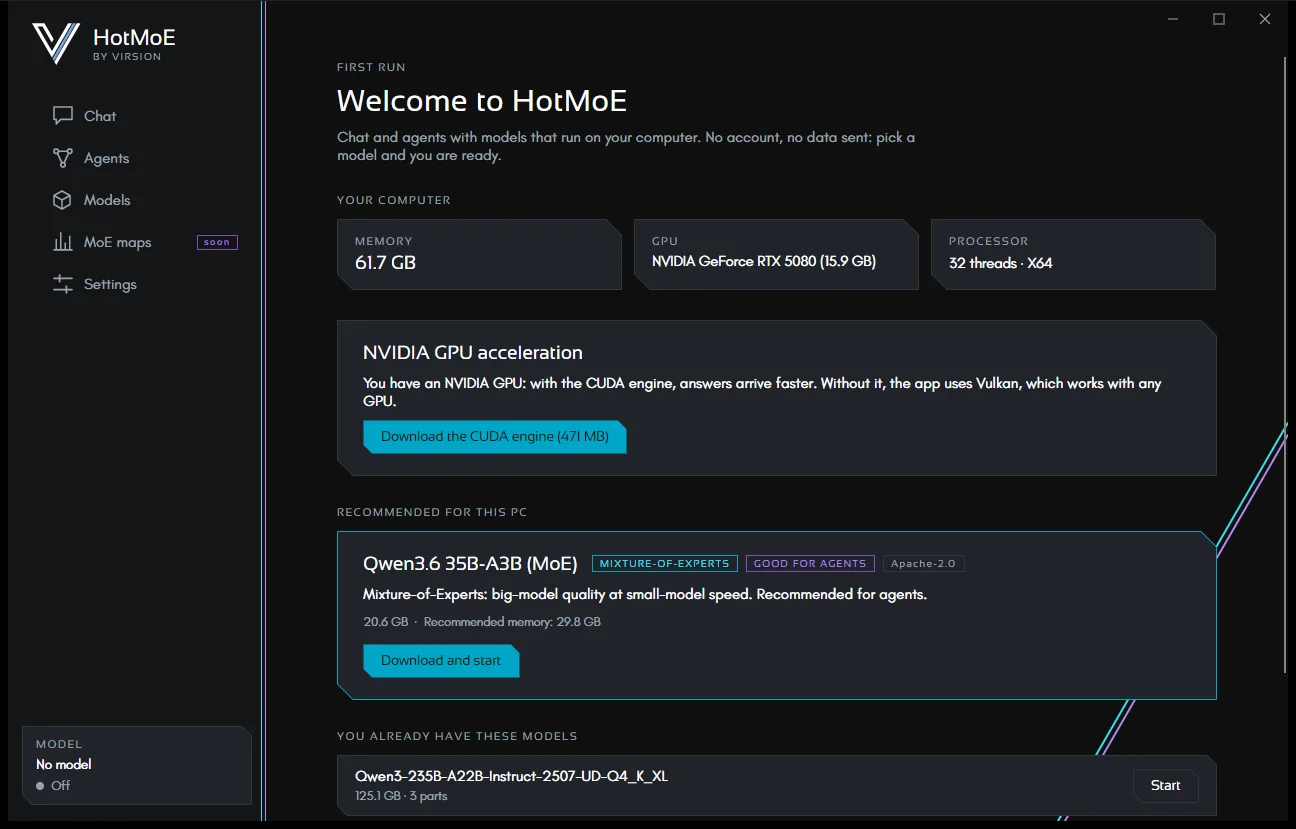
- Your computer. The app detects memory, graphics card (with its memory) and processor.
- NVIDIA GPU acceleration. If you have an NVIDIA card, it offers the faster CUDA engine. You can also skip it: the app uses Vulkan, which works with any GPU.
- Recommended for this PC. The first of the models recommended for your computer (see Models), with its size. One click on Download and start.
- Already have models? Those in the models folder appear under You already have these models, ready to start. I already have a GGUF file… opens a model stored elsewhere; See all models → opens the Catalog tab of the Models page.
You don't need to sign up. The app sends no usage statistics: the privacy page lists the only connections it makes.
Downloading models
- The download shows progress, speed and time left, and can be paused: it resumes where it stopped.
- At the end the app checks the file's integrity (size and the SHA-256 fingerprint published by Hugging Face). A corrupted file is discarded and the download can be repeated.
- To browse the catalog and download you need internet; to chat you don't.
GPU acceleration
| Engine | When |
|---|---|
| Vulkan | Included in the app. Works with NVIDIA, AMD and Intel graphics cards. |
| CUDA | For NVIDIA cards, usually faster. Downloaded once (about 471 MB) from the Welcome page or from Settings. Requires NVIDIA driver 580 or later: if yours is older the app tells you and uses Vulkan meanwhile. |
| Processor only | Without a suitable GPU the model runs on the processor: it works, but more slowly. A small model is best. |
Once the CUDA engine is installed, the app uses it instead of Vulkan. If a model is already loaded, a button offers to reload it on the new engine.
Loading the model
Once you pick a model, the app loads it into memory: a few seconds for small models, a few minutes the first time for large ones. While it loads, the logo in the middle of the chat pulses and the Model box at the bottom left shows Loading…. When you reopen the app, it reloads the last model you used by itself.
If the model doesn't start, the chat shows the error with the Technical details and a button to choose another one.
First conversation
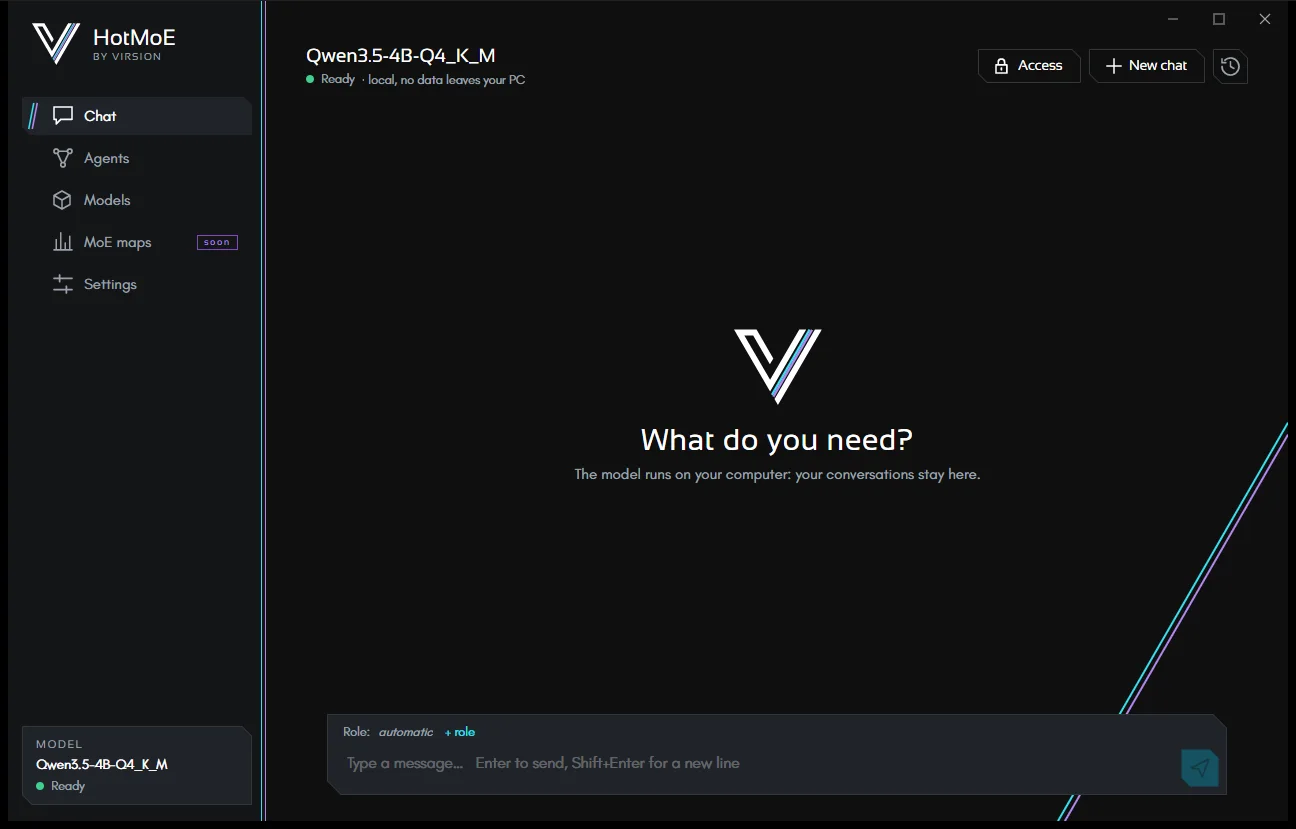
- Type in the box at the bottom and press Enter. For a new line: Shift+Enter.
- While the model replies, the send button becomes Stop.
- New chat at the top opens an empty one; the clock icon opens the history.
To let the chat work on your documents or your email, open Access at the top: see the chat page.
HotMoE is a Virsion project. This guide describes the app as it is today: what is still on the way is marked as such.